> ## Documentation Index
> Fetch the complete documentation index at: https://01c.mintlify.site/llms.txt
> Use this file to discover all available pages before exploring further.
# Amara Assistant UE5
> Build scenes with natural language commands in Unreal Engine 5.
## Requirements
Windows only
With valid subscription
## Installation
Download the **Amara Starter Template** for Unreal Engine 5.7. This includes:
* Amara Plugin v1.1.0 (bundled)
* Starter Asset Pack with ready-to-use 3D assets
Open the project to explore immediately — the pre-indexed assets work out of the box.
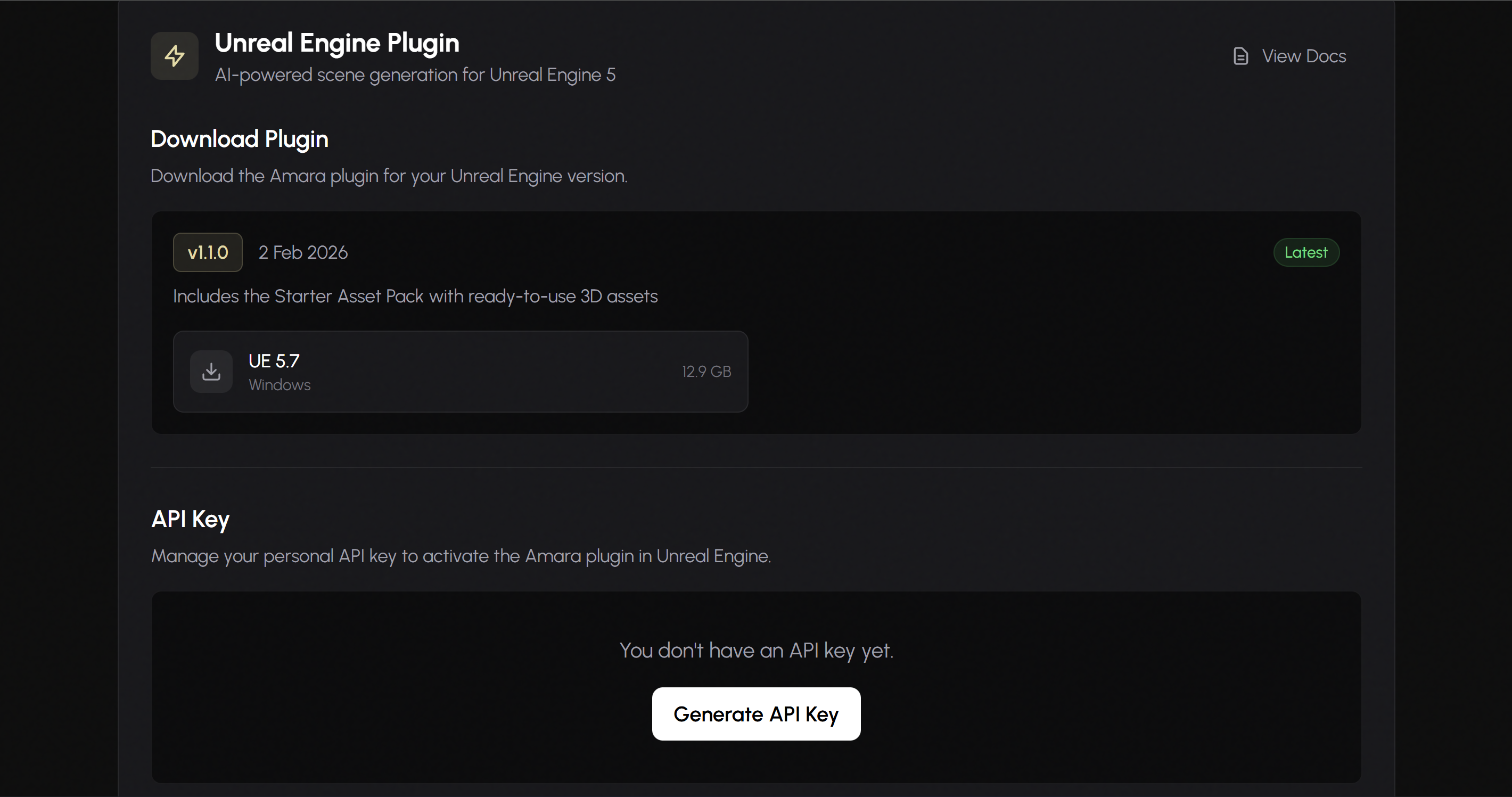
Generate a personal API key to authenticate the Amara plugin:
1. Log in to your Amara account
2. Go to [Profile](https://amara.01c.ai/profile)
3. Find the **Unreal Engine Plugin** section
4. Under **API Key**, click **Generate API Key**
5. Copy the key immediately — it won't be shown again
 1. Open `AmaraStarterTemplate.uproject` from the downloaded Starter Template
2. In Unreal Engine, go to **Tools** → **Amara Connection**
3. Enter your API key in the **API Key** field
4. Click **Connect**
1. Open `AmaraStarterTemplate.uproject` from the downloaded Starter Template
2. In Unreal Engine, go to **Tools** → **Amara Connection**
3. Enter your API key in the **API Key** field
4. Click **Connect**
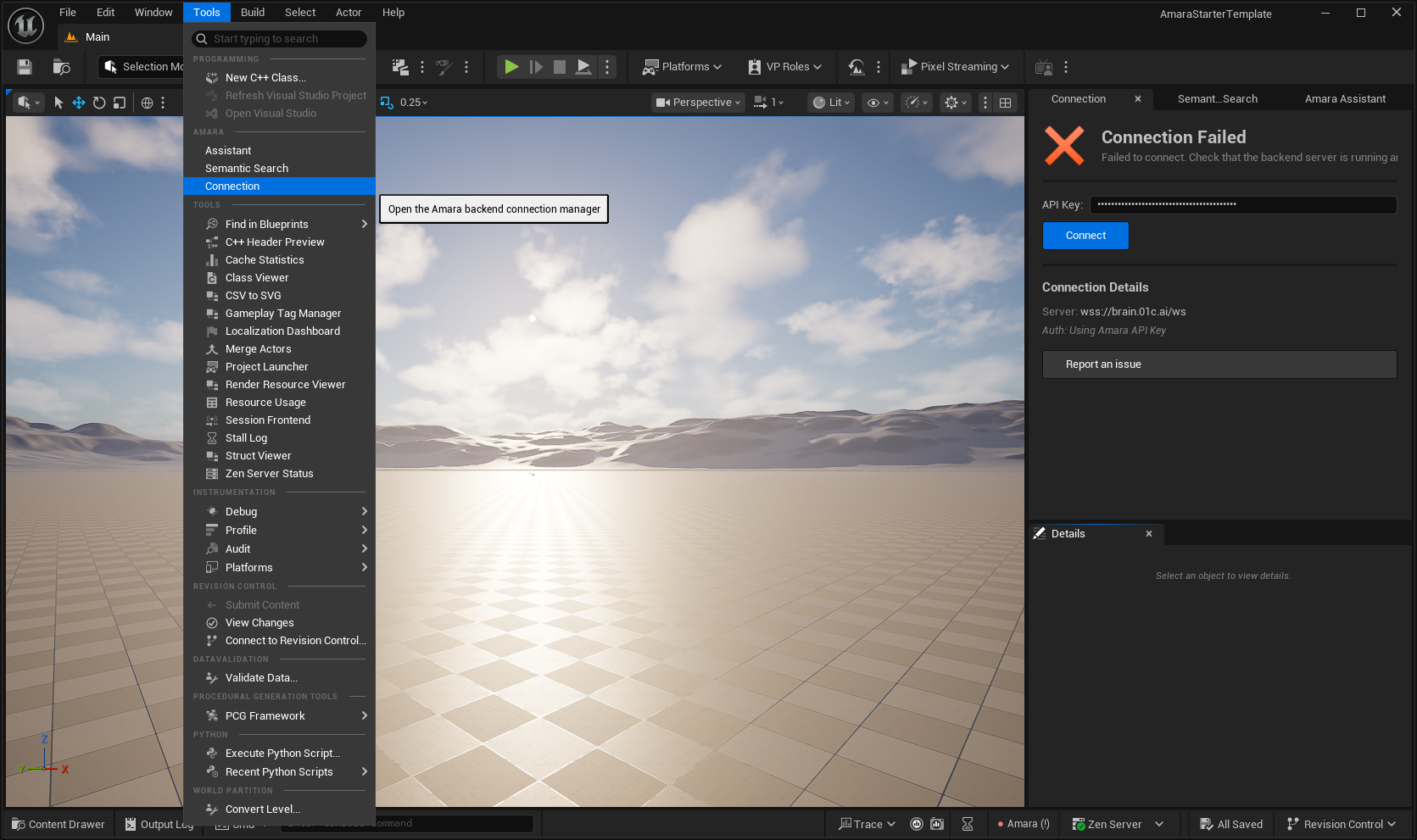 You should see a success message confirming the connection.
## Updating the Plugin
When a newer version of the plugin is released, you can update it from your Profile:
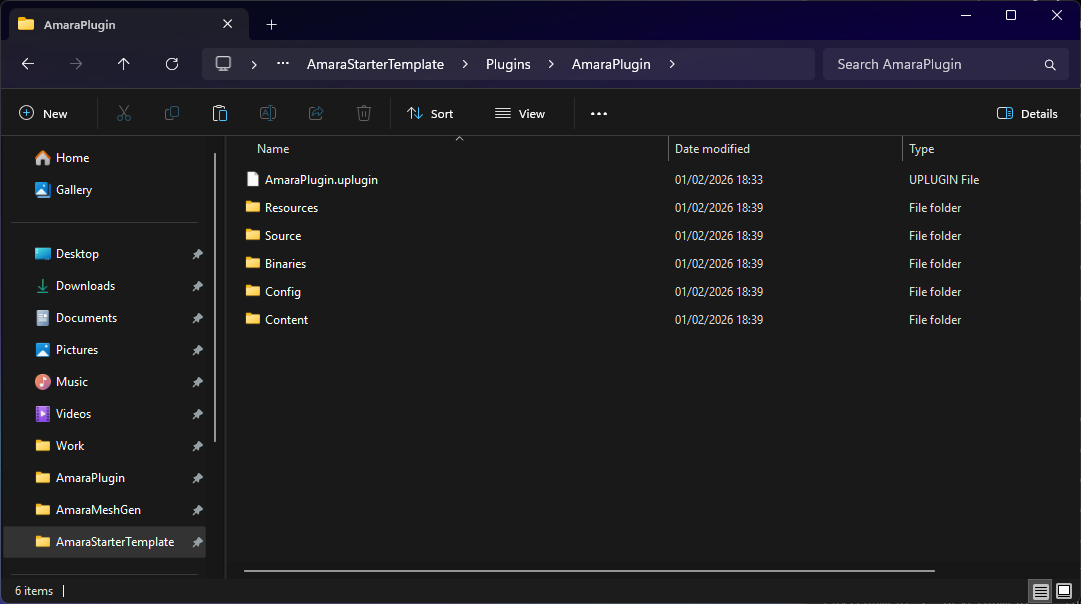
1. Go to [Profile](https://amara.01c.ai/profile) → **Unreal Engine Plugin** and download the latest plugin version
2. In your project folder, navigate to and delete the contents of:
```
AmaraStarterTemplate\Plugins\AmaraPlugin\
```
3. Extract the downloaded plugin and replace with the new contents
4. Restart Unreal Engine
You should see a success message confirming the connection.
## Updating the Plugin
When a newer version of the plugin is released, you can update it from your Profile:
1. Go to [Profile](https://amara.01c.ai/profile) → **Unreal Engine Plugin** and download the latest plugin version
2. In your project folder, navigate to and delete the contents of:
```
AmaraStarterTemplate\Plugins\AmaraPlugin\
```
3. Extract the downloaded plugin and replace with the new contents
4. Restart Unreal Engine
 Your API key will continue to work — no need to regenerate it after updating.
## Using the Plugin
### Assistant
*Natural Language Scene Building*
Build entire scenes using natural language commands:
```text Example prompts theme={null}
"Build me a 17th century English merchant's study with two windows on one wall"
"Make the table messy with some scattered papers and books"
"Rotate the couch to face the fireplace"
"Increase the size of this plant by 1.5x"
```
Your API key will continue to work — no need to regenerate it after updating.
## Using the Plugin
### Assistant
*Natural Language Scene Building*
Build entire scenes using natural language commands:
```text Example prompts theme={null}
"Build me a 17th century English merchant's study with two windows on one wall"
"Make the table messy with some scattered papers and books"
"Rotate the couch to face the fireplace"
"Increase the size of this plant by 1.5x"
```
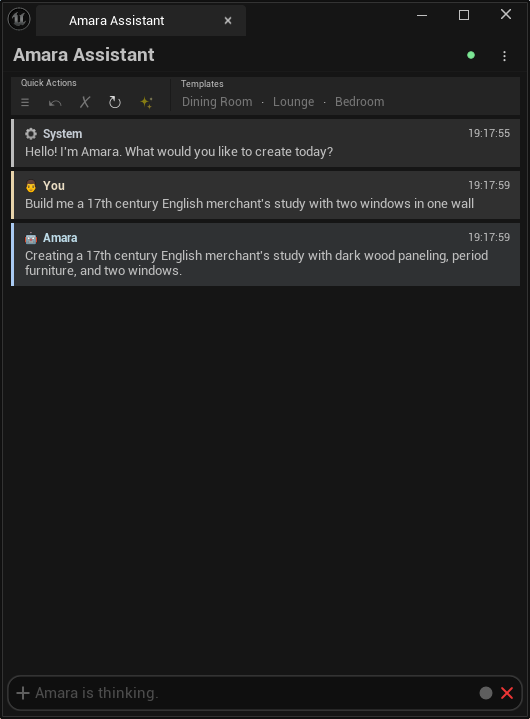 The Assistant can see what you're looking at in the viewport, so you can reference objects naturally (e.g., "this plant", "the table").
### Semantic Search
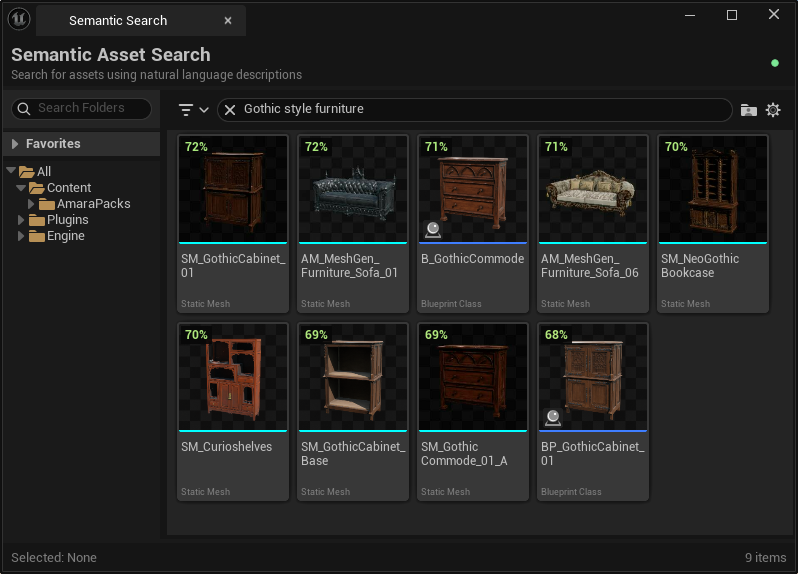
Search for assets in your Content Browser using natural descriptions instead of exact file names. The search uses semantic understanding to find assets appropriate for your scenes based on style, context, and visual characteristics.
Example searches: *"Gothic style furniture"*, *"Modern office desk"*, *"Rustic wooden table"*
The Assistant can see what you're looking at in the viewport, so you can reference objects naturally (e.g., "this plant", "the table").
### Semantic Search
Search for assets in your Content Browser using natural descriptions instead of exact file names. The search uses semantic understanding to find assets appropriate for your scenes based on style, context, and visual characteristics.
Example searches: *"Gothic style furniture"*, *"Modern office desk"*, *"Rustic wooden table"*
 ### Sync Your Own Assets
The Starter Pack includes pre-indexed assets that work immediately. To use your own assets:
1. Click **Sync Assets** in the Amara panel
2. Wait for the sync to complete (larger projects may take significant time)
3. Once synced, your Content Browser assets will be available to the Assistant and Semantic Search
For projects with many assets, consider running the sync during a break or overnight.
## Helpful Features
Clean up and optimize your scene layout
Revert the last Assistant action
## Troubleshooting
* Verify your API key is correct and hasn't been revoked
* Check your internet connection
* Ensure your subscription is active
* Run **Sync Assets** to index your Content Browser
* Wait for sync to complete before searching
## Need Help?
* [Discord](https://discord.gg/RZjB7NVsJC)
* [Support Center](https://amara.01c.ai/support)
* [Email: info@01c.ai](mailto:info@01c.ai)
### Sync Your Own Assets
The Starter Pack includes pre-indexed assets that work immediately. To use your own assets:
1. Click **Sync Assets** in the Amara panel
2. Wait for the sync to complete (larger projects may take significant time)
3. Once synced, your Content Browser assets will be available to the Assistant and Semantic Search
For projects with many assets, consider running the sync during a break or overnight.
## Helpful Features
Clean up and optimize your scene layout
Revert the last Assistant action
## Troubleshooting
* Verify your API key is correct and hasn't been revoked
* Check your internet connection
* Ensure your subscription is active
* Run **Sync Assets** to index your Content Browser
* Wait for sync to complete before searching
## Need Help?
* [Discord](https://discord.gg/RZjB7NVsJC)
* [Support Center](https://amara.01c.ai/support)
* [Email: info@01c.ai](mailto:info@01c.ai)